9 Phone Settings You Should Change for Better Battery Life and Privacy
Most of us check our phones constantly and never look past the defaults, and the defaults are not set up in your favor. Out of the box, a phone is tuned for the manufacturer's convenience and for data collection, not for your battery or your privacy. The good news is that five or ten minutes in the settings menu can meaningfully cut battery drain and close real privacy gaps. Below are nine changes worth making, what each one actually does, and where to find it. One honest caveat up front: exact menu names move around between iOS and Android versions and between phone makers, so treat the paths here as a starting point and search your settings if a label is slightly different on your device.
1. Limit Location Services to Apps That Actually Need It
Location is one of the bigger background battery drains, because GPS draws real power during constant position updates. It is also the permission most often over-requested: plenty of apps that have no functional need for your location ask for it anyway, from weather apps to games. On iPhone, open Settings > Privacy & Security > Location Services and work down the list app by app. On Android, it is under Settings > Location > App location permissions (and also per-app under Settings > Apps).
The key move is setting each app to "While Using" instead of "Always," and denying it outright for anything that clearly doesn't need it. That stops a social app from logging your location while it sits closed in the background. For the handful that genuinely need location (maps, ride-hailing, fitness tracking), "While Using" is almost always enough. This is both a privacy win and a steady battery saving.
Once your phone is dialed in for battery and privacy, the next step is using it intentionally. Our roundup of the best productivity apps for students covers the apps that genuinely help you concentrate.
Related: Best Note-Taking Apps for Every Type of User
2. Rein In Background Activity
Background refreshing lets apps sync, update, and pull data while you are not using them. It is convenient, but it quietly costs battery and keeps apps talking to their servers around the clock. On iPhone, Settings > General > Background App Refresh lets you turn it off entirely or app by app. Android does not have one global switch with that name; instead you restrict it per app under Settings > Apps > [app] > Battery (look for "Background activity" or "Restricted"), and the Battery section flags the apps using the most background power.
You don't need a banking app syncing overnight or a video app preloading clips while you sleep. Turning background activity off for everything non-essential is one of the higher-impact battery changes you can make, and the only cost is occasionally opening an app to pull fresh data yourself.
3. Trim Siri and Search Suggestions
Apple's Siri and on-device suggestions continuously analyze how you use your phone to predict what you'll want next. Most of this processing stays on the device, but it still costs battery, and many people simply don't use the suggestions. On current iOS this lives under Settings > Apple Intelligence & Siri (older versions call it "Siri & Search"), where you can turn off "Listen for Hey Siri" and the various Suggestions toggles. On Android, the parallel cleanup is under your Google Account: Settings > Google > Manage your Google Account > Data & privacy, where you can pause Web & App Activity for services you don't want profiled.
A nice side effect people often notice is that the phone feels a little snappier afterward, because it stops indexing your activity in the background. The privacy gain is the bigger prize here; the battery effect is modest but real.
Related: 22 Keyboard Shortcuts That Actually Save You Time (And Your Wrists)
4. Turn Down Location Precision You Don't Need
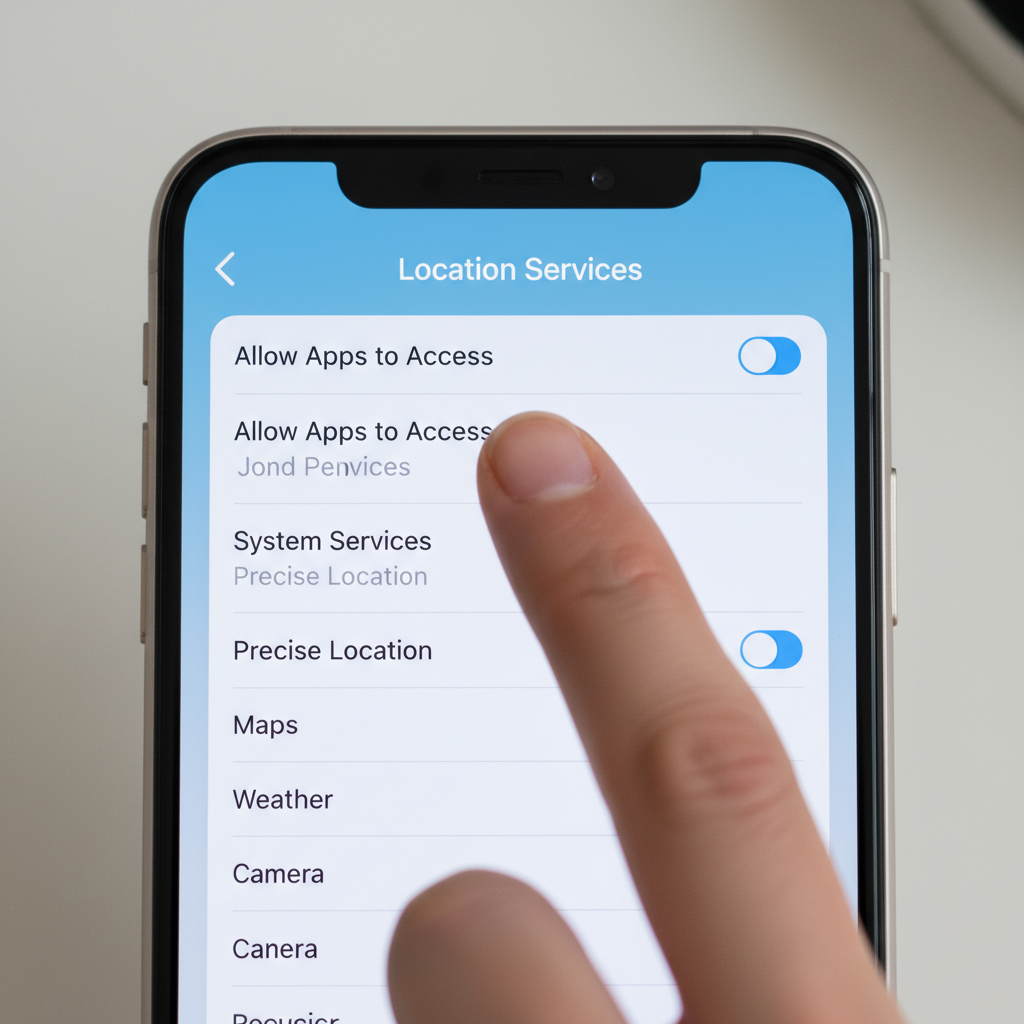
Both platforms can use a high-precision mode that combines GPS, Wi-Fi, Bluetooth, and cell data, and that precision costs power. On Android, Settings > Location > Location services > Google Location Accuracy toggles the precise mode off, dropping you to coarser but still usable positioning. On iPhone, the related control is "Improve Location Accuracy" under Settings > Privacy & Security > Location Services > System Services (note this specific toggle's availability has shifted across recent iOS versions, so it may sit in a slightly different spot on yours).
For everyday use, maps, weather, and fitness apps work fine with coarser location, and you trade pinpoint accuracy you rarely need for less background GPS draw. If you do serious turn-by-turn navigation, just flip precision back on when you need it.
5. Switch Bluetooth Off When You're Not Using It
When Bluetooth is on, your phone is scanning for nearby devices even when nothing is connected, which costs a bit of battery and, more notably, makes your phone discoverable to Bluetooth beacons. Beacon-based tracking is a real thing in retail: stores and malls have used in-store beacons to follow shoppers' movements and trigger targeted offers. Toggling Bluetooth off from Control Center (iPhone) or the quick-settings shade (Android) when you're not actively using headphones, a watch, or your car closes that down.
If flipping it on and off is annoying, both platforms can automate it: iOS Shortcuts can disable Bluetooth on a schedule or at certain locations, and Android automation apps can do the same. Either way, you stop your phone from constantly announcing itself to every beacon in range.
6. Cut Push Notifications for Non-Essential Apps
Every notification wakes the screen and the processor and often triggers a sync. Apps have a clear incentive to send a lot of them, because notifications drive engagement, not because you need them. Beyond the battery cost, a constant drip of alerts fragments your attention by design.
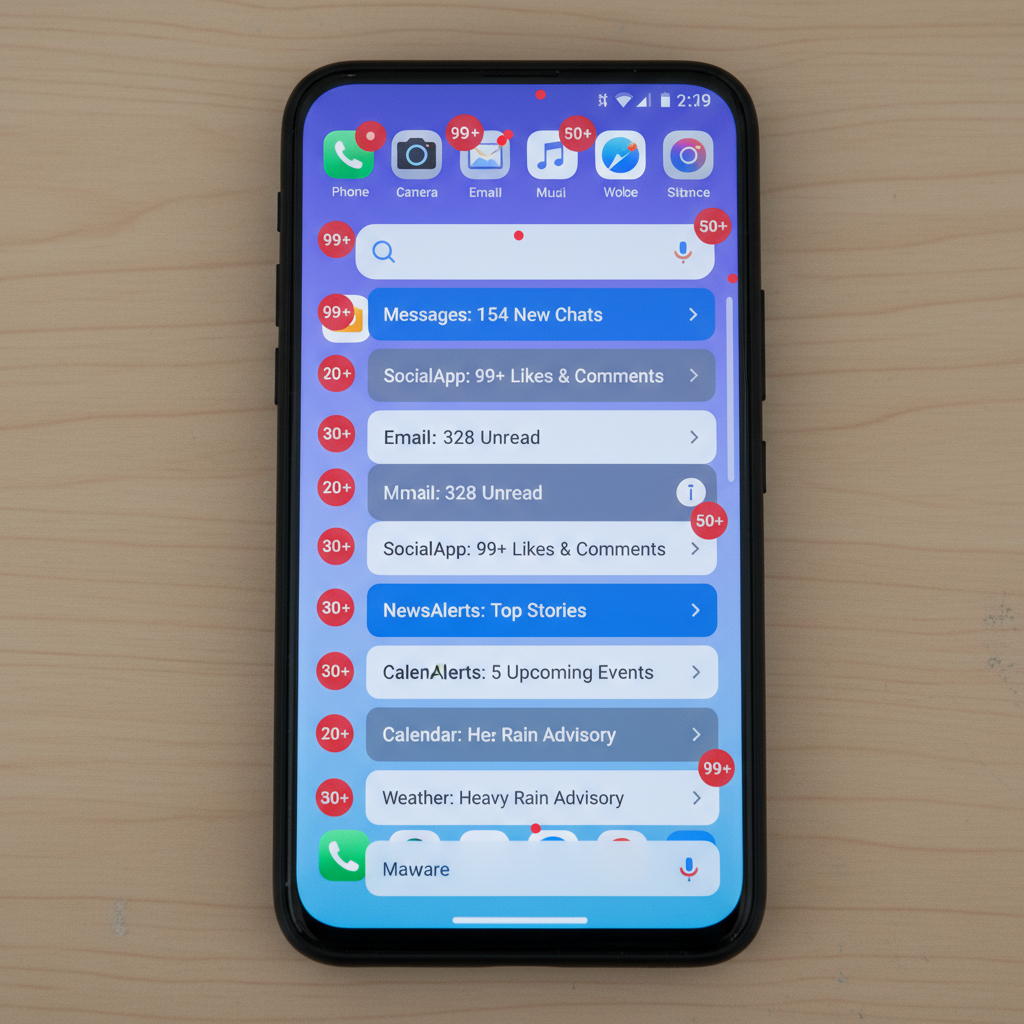
Open Settings > Notifications and be ruthless: keep messages, calls, your bank, and maybe your calendar, and turn off the rest, including badges and sounds for social, shopping, games, and entertainment apps. The battery benefit is real but secondary; the bigger payoff is reclaiming your attention and removing one more channel apps use to pull you back in.
7. Revoke App Permissions You Don't Actually Use
Apps routinely request access to your camera, microphone, contacts, photos, calendar, and health data, and a lot of those permissions go unused by the app's core function. Companies ask broadly to keep options open for future features and data collection. There is rarely a good reason for a music app to reach your photo library or a flashlight app to want your contacts.
On iPhone, Settings > Privacy & Security lets you review by category (Camera, Microphone, Contacts, Photos, and so on) and see which apps hold each permission. On Android, Settings > Apps > [app] > Permissions, or the Privacy dashboard, does the same. Deny anything that isn't clearly needed for what the app does. The battery effect is small, but the security and privacy benefit is meaningful, and it shrinks what a misbehaving or malicious app can reach.
8. Take Back Control of App Updates
By default, both platforms auto-update apps in the background, which wakes the device, uses power, and consumes data. It also means apps can quietly change behavior or add permissions before you notice. On iPhone, Settings > Apps > App Store (older iOS: Settings > App Store) lets you turn off automatic app updates under Automatic Downloads. On Android, open the Play Store, then Settings > Network preferences > Auto-update apps and choose "Don't auto-update."
Switching to manual updates every week or so gives you three things: the phone stops doing install work in the background, you get a chance to skim release notes and see what is changing, and you decide the timing. It is a small battery saving and a real control-and-awareness gain.
9. Work Through the Built-In Privacy and Ad Settings
The deepest data collection often runs through the platform's own services and ad systems, and those controls tend to be buried. On iPhone, go through Settings > Privacy & Security: under Tracking, turn off "Allow Apps to Request to Track"; under Apple Advertising, turn off "Personalized Ads"; and review the Analytics and Health sharing options. On Android, open Settings > Google > Manage your Google Account > Data & privacy and pause Web & App Activity, Location History, and YouTube History, then turn off Ad Personalization.
These changes limit how much of a behavioral profile Google and Apple can build to target you. If you want a trustworthy outside reference rather than taking any single article's word for it, the Electronic Frontier Foundation publishes free, regularly updated privacy guides that walk through these same settings in more depth.
You don't have to do all nine at once. Start with the first three (location, background activity, and Siri or Google activity), since those give you the biggest combined battery and privacy return, then work through the rest when you have a few spare minutes. The throughline is simple: the defaults serve the platform, and a short settings pass realigns the phone to serve you instead.