21 Secret iPhone Features and Hidden Settings That Will Actually Change How You Use Your Phone
Your iPhone is packed with features that most people never discover, tucked away in menus you've probably never scrolled through or settings that seem too obscure to matter. The truth is, Apple has loaded its devices with genuinely useful tools that can transform your daily phone experience. Whether you're frustrated with battery life, overwhelmed by notifications, or just tired of using your phone the same way everyone else does, these hidden gems are waiting to help you out.
-
Focus Modes with Custom Lock Screens
Everyone knows about Focus modes for silencing notifications, but here's what makes this feature truly transformative: you can assign completely different lock screens to different Focus modes. When you activate your Work focus, your entire lock screen changes to show only work-relevant information. This means your personal lock screen can stay personal, and your work lock screen stays professional, without you having to manually switch anything.
-
Keyboard Haptic Feedback for Better Typing
Buried in Settings > Sounds & Haptics > Keyboard Feedback, you'll find toggle options for both sound and haptic feedback when typing. Many people assume their keyboard just feels mushy, but enabling haptic feedback (if you have a compatible iPhone) gives each keystroke a tiny vibration that makes typing feel sharper and more satisfying. This single setting can actually improve your typing accuracy and speed.
-
Live Voicemail Transcription in Real Time
Instead of calling voicemail back to listen to long messages, you can now read transcribed voicemails in real time as someone leaves them. When someone calls and goes to voicemail, the transcription appears on your screen instantly. You can respond to the message immediately without playing it back, making voicemail actually useful for the first time in a decade.
Related: Best Password Manager 2026: Which One Actually Protects Your Passwords
-
Two-Factor Authentication Codes Built into Settings
You don't need a separate authenticator app if you don't want one. Your iPhone can generate two-factor authentication codes automatically through the built-in system. Go to Settings > Passwords and enable "Automatic Verification" to let your phone handle these codes silently in the background. This removes one of the biggest friction points in using strong security without sacrificing convenience.
-
Scheduled Summary Notifications
Drowning in notifications? You can actually schedule them to arrive in batches at specific times instead of constantly interrupting you. Go to Settings > Notifications > Scheduled Summary and choose when you'd like non-urgent notifications delivered. Instead of getting interrupted 50 times a day, you get one digest at 9 AM and another at 5 PM, giving you back control of your attention.
-
Share Your WiFi Password with a Tap
When someone asks for your WiFi password, open your WiFi settings while you're near them and tap "Share" instead of rattling off a complicated password. Their iPhone automatically receives the credentials without you having to type anything. This works as long as both phones are unlocked and in close proximity, making one of the most annoying interactions of modern life nearly painless.
-
Emergency SOS Automatic Contact Notification
Beyond just calling emergency services, you can program your iPhone to automatically notify emergency contacts when you use the Emergency SOS feature. Add your emergency contacts in the Health app, and when you activate Emergency SOS, your phone can send them your location. In a real emergency, this means help reaches you faster than it would if you had to call people separately.
Related: The Best Budget Wireless Earbuds for 2026: Premium Features Without the Price Tag
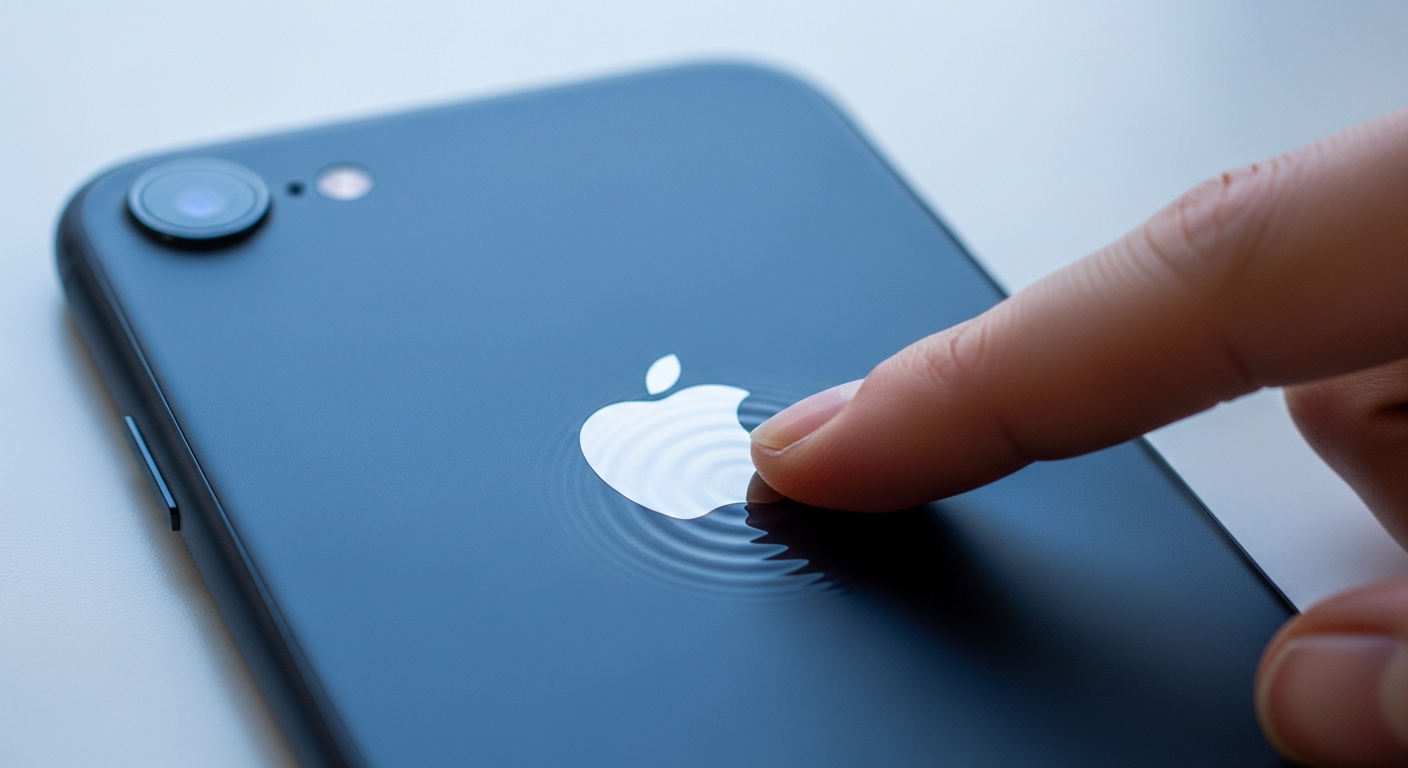
Image: GlobalFunReads -
Back Tap for Common Actions
Double or triple tap the back of your iPhone to trigger custom actions without looking at your screen. Go to Settings > Accessibility > Touch > Back Tap to set this up. You can assign things like taking screenshots, opening apps, or triggering shortcuts to this physical gesture, making it incredibly useful for one-handed operation or when your hands are full.
-
Proximity-Based Automations
The Shortcuts app has a feature called "Automations" that can trigger actions based on your physical location. You could set up your phone to automatically switch to Work focus when you arrive at the office, or turn on Do Not Disturb when you leave home. These location-based automations run silently in the background without any action from you.
-
Text Recognition in Screenshots
When you take a screenshot, you can now extract and copy text directly from that image. Long press the screenshot thumbnail and tap "Copy Text" to grab all the text from the image. This is incredibly useful for capturing information from images without having to retype anything, or for grabbing someone's contact information from a shared photo.
-
Smart Stack Widgets That Change Automatically
You can create smart stacks on your home screen that automatically rotate between different widgets based on your activity and time of day. Add multiple widgets to a stack and let your phone decide which one you need most right now. Your weather app might appear in the morning, while your calendar takes over during business hours, all without you touching anything.
-
Custom Vibration Patterns for Contacts
Instead of just ringtones, you can create custom vibration patterns for important people in your contacts. Open a contact, tap "Edit," then scroll to "Vibration" and create a pattern by tapping the screen. You can then recognize who's calling just by how your phone vibrates in your pocket, which is surprisingly useful when you can't look at your screen.
-
Health App Emergency Info Display
Beyond just tracking steps, your Health app can display critical medical information on your lock screen for emergency responders. Go to Health > Profile > Medical ID to set this up. Include your blood type, allergies, and emergency contacts so that if something happens to you, first responders can see vital information before you're even conscious.
-
Voice Control Without Using "Hey Siri"
If "Hey Siri" doesn't work in your environment or you want a more subtle activation method, go to Settings > Accessibility > Siri and enable "Press Side Button for Siri." You can also use "Listen for 'Hey Siri'" alongside this, giving you both hands-free and button-based options for different situations.
-
App-Specific Notification Settings
You probably know you can mute apps, but did you know you can customize exactly how apps notify you? For some apps, you can choose banner style, lock screen presence, and even whether they show in Notification Center. Open Settings > Notifications, select an app, and you'll find options that let you receive notifications that don't interrupt but still inform you.
-
Microphone Access Per App
Your iPhone lets you grant microphone access to apps on a per-session basis instead of permanent access. Go to Settings > Privacy > Microphone to see which apps have access. You can also toggle off access for apps that don't actually need your microphone, which improves both privacy and prevents apps from listening when they shouldn't be.
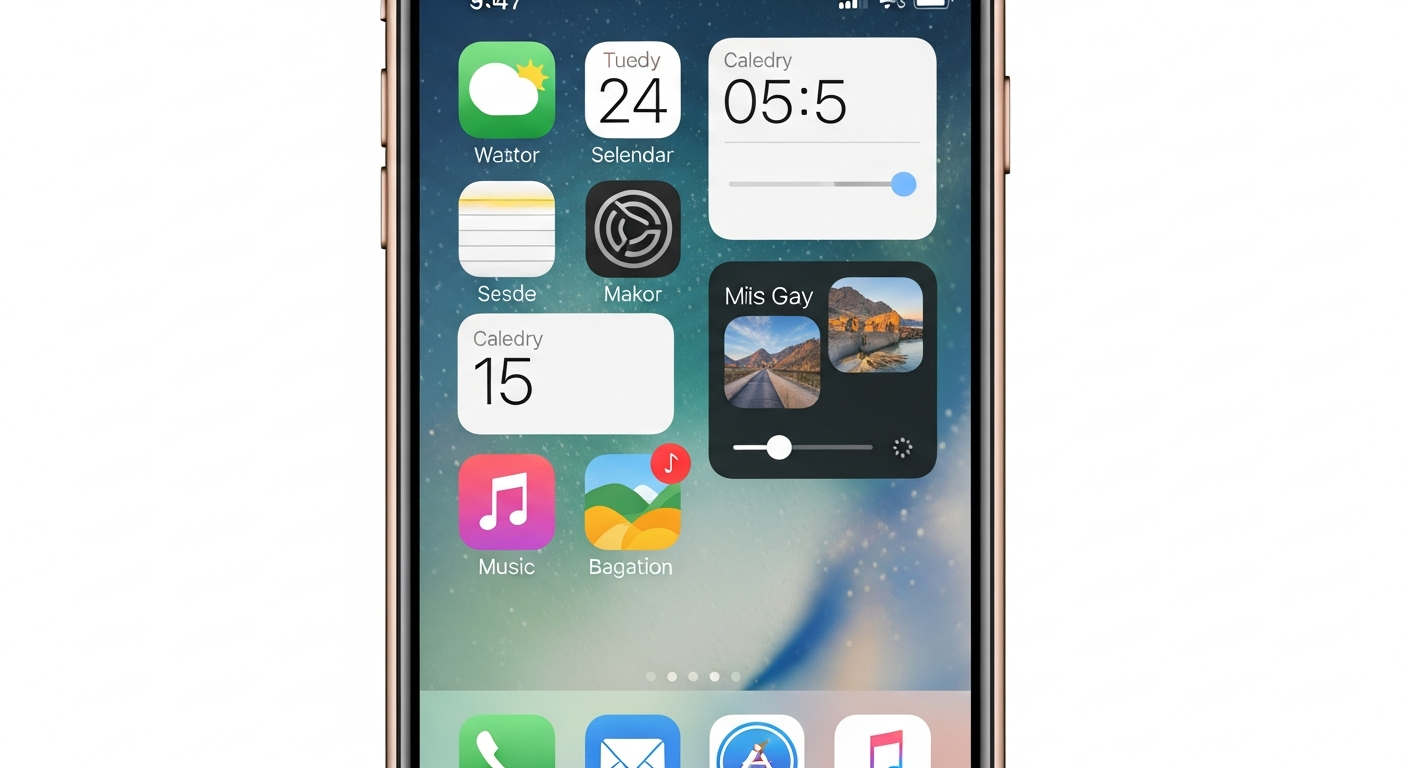
Image: GlobalFunReads -
Keyboard Shortcuts for Phrases
Save commonly typed phrases as keyboard shortcuts that expand when you type them. Go to Settings > General > Keyboard > Text Replacement and add shortcuts like "syl" that expands to your full home address or email. This turns typing your address or email into a three-letter task, saving you dozens of hours over a year of iPhone use.
-
Battery Health Monitoring in Settings
Check your battery's current health percentage in Settings > Battery > Battery Health & Charging. This shows you the maximum capacity your battery can hold compared to when it was new. If your battery is degrading faster than expected, this information helps you decide whether to seek a replacement before your phone's performance tanks.
-
Automatic App Store Updates
Instead of manually updating every app, enable automatic updates in Settings > App Store > App Updates. You can choose "Auto-Update" to let apps update whenever new versions are available. Your iPhone only needs WiFi and power to install these updates, so you'll always have the latest features and security patches without thinking about it.
-
Haptic Feedback for Keyboard Sliders
Many iOS sliders and controls now include haptic feedback that helps you feel when you've hit specific points. When you're adjusting volume or brightness, you'll get slight vibrations at important thresholds. This means you can adjust settings more precisely and feel confident about your changes even without looking at the screen.
-
Reminders with Location or Time-Based Triggers
Create reminders that automatically trigger based on your location instead of just time. In the Reminders app, create a new reminder and set it to alert you when you arrive at or leave a specific place. You could set a reminder to buy milk when you're near the grocery store, or call Mom when you leave work, making reminders actually work with your real life instead of against it.
These hidden features are proof that your iPhone is far more capable than the default setup suggests. Whether you implement all of these or just pick a few that solve actual problems in your daily life, taking time to explore your phone's settings can genuinely transform how much you enjoy using it. Start with one or two features this week, and notice how much smarter your phone becomes when you unlock its true potential. What's your favorite iPhone feature that most people don't know about? Drop it in the comments below.