12 Hidden Phone Settings You Should Change Right Now (For Your Own Good)
Your smartphone is essentially a tiny computer that tracks your location, monitors your behavior, and collects data about nearly everything you do. While you probably adjusted a few basic settings when you first set up your phone, the really important stuff is buried in menus most people never touch. The good news is that spending just fifteen minutes changing these hidden settings could dramatically improve your privacy, battery life, security, and overall phone experience.
-
Disable Location History and Timeline Tracking
Google and Apple are constantly logging everywhere you go, creating a detailed map of your movements that's stored on their servers. Even if you think location is turned off, these companies maintain a "Timeline" or "Location History" that tracks you across the globe. Go into your phone's location settings and disable location history in Google Maps or Apple's equivalent service, then check your Google Account settings online to delete past location data.
-
Turn Off Predictive Text and Personalized Suggestions
Your keyboard is learning everything you type, including passwords, credit card numbers, and private messages. This data is often synced to the cloud where it can be hacked or sold. Disable keyboard personalization, predictive text learning, and suggestion syncing in your keyboard settings to keep your typing patterns private and reduce the data being collected about you.
-
Revoke Microphone Access from Apps You Don't Use
Apps like weather apps, flashlight apps, and games request microphone permissions for features you probably never use. Once granted, these permissions give apps the ability to listen to what's happening around your phone at any time. Audit your microphone permissions in your phone's privacy settings and revoke access from any app that doesn't explicitly need to record audio.
Related: Best Password Manager 2026: Which One Actually Protects Your Passwords
-
Disable Automatic App Updates Over Cellular
While automatic updates sound convenient, they can burn through your data plan quickly and slow down your phone without warning. More importantly, some updates introduce bugs or changes you might not want immediately. Switch automatic updates to only occur over WiFi, or better yet, disable automatic updates entirely so you can choose when to update each app.
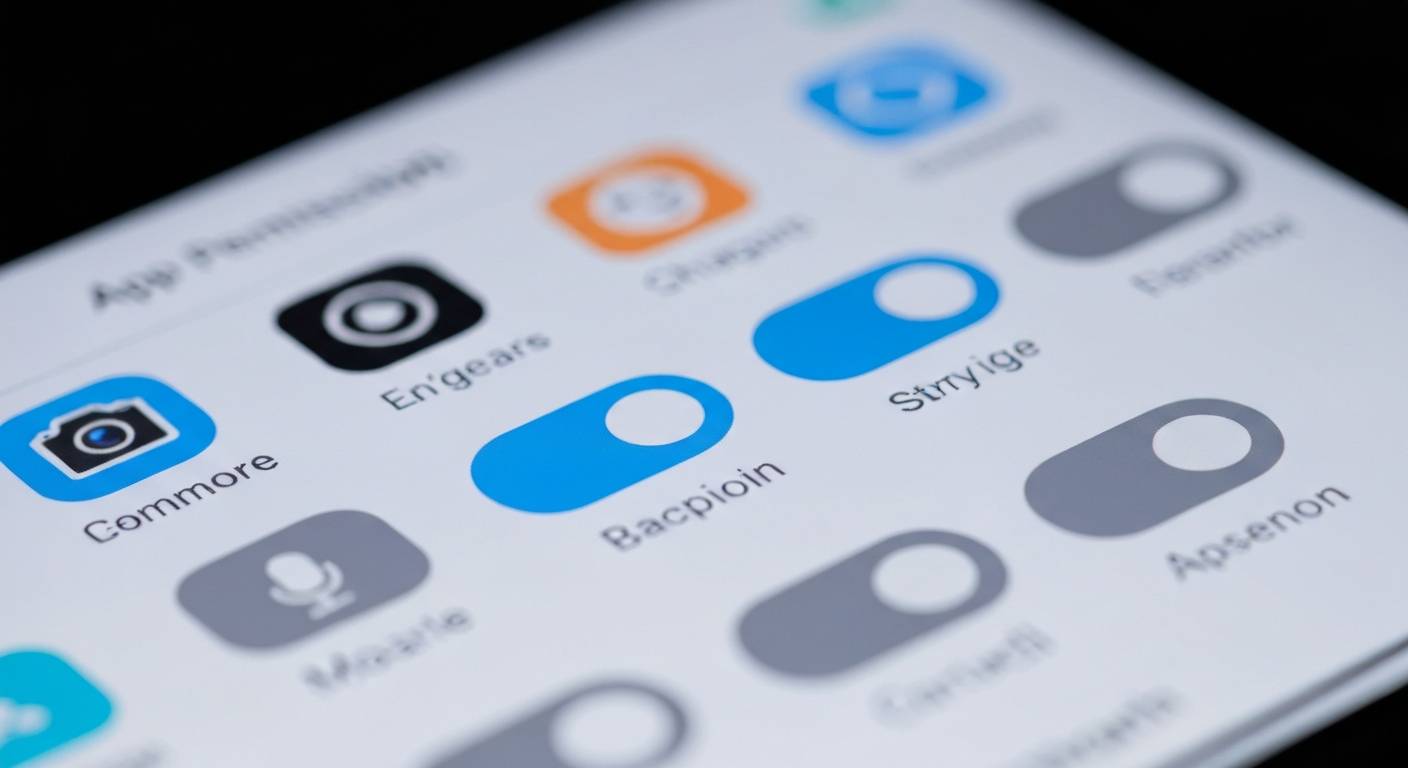
Image: GlobalFunReads -
Enable Per-App Language Translation Features
Both iOS and Android now offer translation features built directly into your keyboard and messaging apps, but you need to enable them manually. These features let you instantly translate messages without leaving your chat app or sending information to third-party translation services. Enable on-device translation in your keyboard settings to save time and keep your conversations more private.
-
Turn Off Cellular Data for Background App Refresh
Apps running in the background constantly check for updates and new content, quietly draining your battery and data plan. Many of these apps don't actually need real-time updates, they're just programmed to check frequently by default. Go to Background App Refresh settings and disable cellular data for apps that don't need live updates, like note-taking apps or music libraries.
-
Disable Siri or Google Assistant from Lock Screen
Leaving your voice assistant enabled on the lock screen means anyone holding your phone can trigger it without your permission. They could call people, send messages, access your calendar, or even unlock certain apps without authentication. Disable voice assistant access from the lock screen in your security settings, and require authentication before using it.
Related: The Best Budget Wireless Earbuds for 2026: Premium Features Without the Price Tag
-
Restrict Ad Tracking and Reset Your Advertising ID
Your phone assigns you a unique advertising ID that companies use to track you across apps and create detailed profiles of your interests and habits. You can't completely stop this, but you can significantly reduce it by enabling "Limit Ad Tracking" on iPhone or "Opt out of Ads Personalization" on Android. Additionally, reset your advertising ID regularly to make it harder for companies to build long-term profiles about you.
-
Turn Off Biometric Data Syncing to Cloud
Your facial recognition data or fingerprints shouldn't be synced to the cloud where a data breach could expose them. While your face or fingerprint data is generally kept secure on your device, disabling cloud sync adds an extra layer of protection. Check your biometric settings and make sure face and fingerprint data is stored locally only, not backed up to any cloud service.
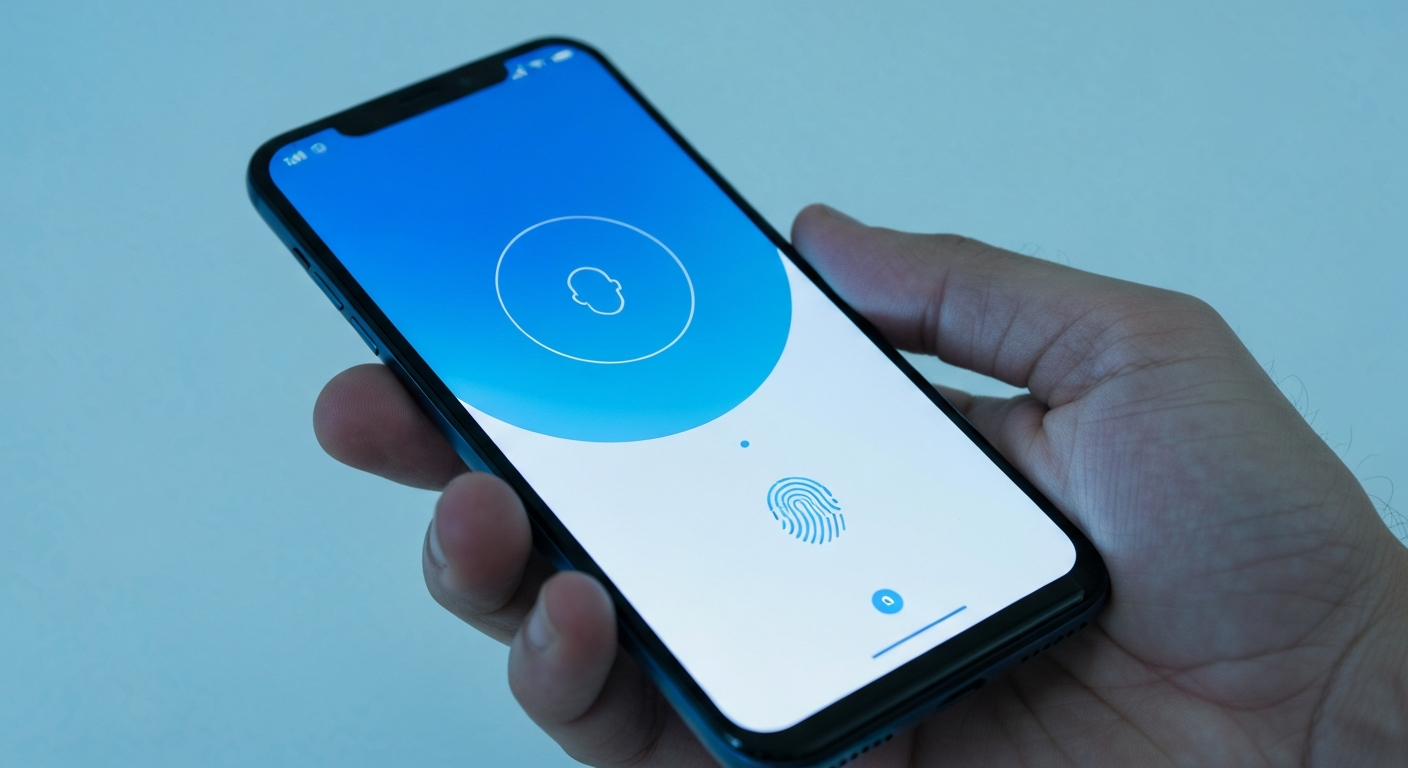
Image: GlobalFunReads -
Disable Always-On Display Location Permissions
The always-on display feature is convenient, but it can drain battery faster than you'd expect if location services are constantly active. Some apps continue requesting location data even when you're not using them because location permissions carry over to lock screen widgets. Disable location permissions for widgets and always-on display features you don't actively need.
-
Enable DNS Over HTTPS for Private Browsing
Your internet service provider can see every website you visit even if you're using a private browser, because they control the DNS (Domain Name System) that translates website names into addresses. Enabling DNS Over HTTPS encrypts these requests so your ISP can't see your browsing activity. Change your DNS settings to use a privacy-focused provider like NextDNS, Mullvad, or Cloudflare's 1.1.1.1 service.
-
Disable Notification History and Lock Screen Notifications
Notifications that appear on your lock screen and in notification history can expose sensitive information to anyone who picks up your phone. A single notification from your banking app, dating app, or work email could reveal private details. Disable sensitive notifications on the lock screen and disable notification history in your privacy settings for complete control over what's visible.
These twelve hidden settings represent some of the most important privacy and security adjustments you can make on your phone. While each individual setting might seem small, together they create a comprehensive shield against unwanted tracking, data collection, and unauthorized access. Spend the next fifteen minutes going through your phone's settings menu, implement these changes, and you'll have significantly more control over your digital life. Your future self will thank you for taking privacy seriously today.