Why Sling TV's Multiview Feature is a Game-Changer for Cord-Cutters
A 2023 Nielsen study found that households with streaming service bundles watch an average of 4.2 hours of content daily, often juggling multiple screens to catch their favorite shows simultaneously. If you're part of the 56 million Americans who've ditched cable in favor of streaming, you've probably experienced the frustration of missing a crucial game because your family member commandeered the TV for their reality show marathon. Sling TV's Multiview feature solves this problem by letting you watch up to four channels at once on a single screen, eliminating the device-sharing drama that plagues many streaming households. And the best part? You can set it up faster than it takes to microwave popcorn.
Multiview isn't just a convenience feature, it's a strategic advantage for sports fans, news junkies, and anyone who refuses to miss a moment of their appointment television. Whether you're tracking multiple fantasy football games simultaneously or keeping tabs on breaking news across different networks, Sling TV's implementation of this technology outpaces competitors like YouTube TV and Hulu + Live TV, which either charge extra for similar features or don't offer them at all. The feature works seamlessly across Sling's two core packages (Sling Orange and Sling Blue), making it accessible to more subscribers than premium-tier alternatives.
What You Need Before You Start: The Prerequisites Check
Before diving into setup, let's verify you've got everything required. You'll need an active Sling TV subscription (either Sling Orange at $39.99/month or Sling Blue at $39.99/month, as of 2024), a compatible streaming device, and a solid internet connection. According to Sling TV's technical specifications, they recommend a minimum of 6 Mbps per stream for HD quality, which means you should ideally have at least 24 Mbps download speed if you're running Multiview with all four channels simultaneously. That's significantly higher than the 5 Mbps YouTube recommends for their standard streaming, so don't skip the speed test.
Compatible devices include Roku devices (stick, box, or TV models from 2016 and newer), Amazon Fire TV devices, Apple TV (4th generation and later), Android TV devices, Samsung Smart TVs with 2016+ models, and LG Smart TVs from 2018 onwards. Interestingly, Sling TV's Multiview feature is NOT available on Apple's native platforms through web browsers or older mobile apps, so if you're primarily an iPhone user, you'll need to use an Apple TV connected to your actual television set. Check your device's compatibility on Sling TV's official support page before starting the setup process, as attempting to access Multiview on an unsupported device will just frustrate you.
Related: The 15 Best Reality Competition Shows Right Now, Ranked by Voters Who Actually Know
Your internet connection deserves special attention here. A 2024 Broadband Speed Study from the FCC revealed that average American broadband speeds have increased to 261 Mbps, but that's skewed by urban fiber installations. If you're on standard cable internet in suburban or rural areas, you might have speeds closer to 100-150 Mbps. Running Multiview on a weak connection doesn't just mean pixelated video; it can cause buffering across all four channels simultaneously, which creates a cascading failure effect where your entire viewing experience degrades. Use speedtest.net to verify your actual download and upload speeds, not just the speeds your ISP advertised.
Step 1: Access the Multiview Feature on Your Device
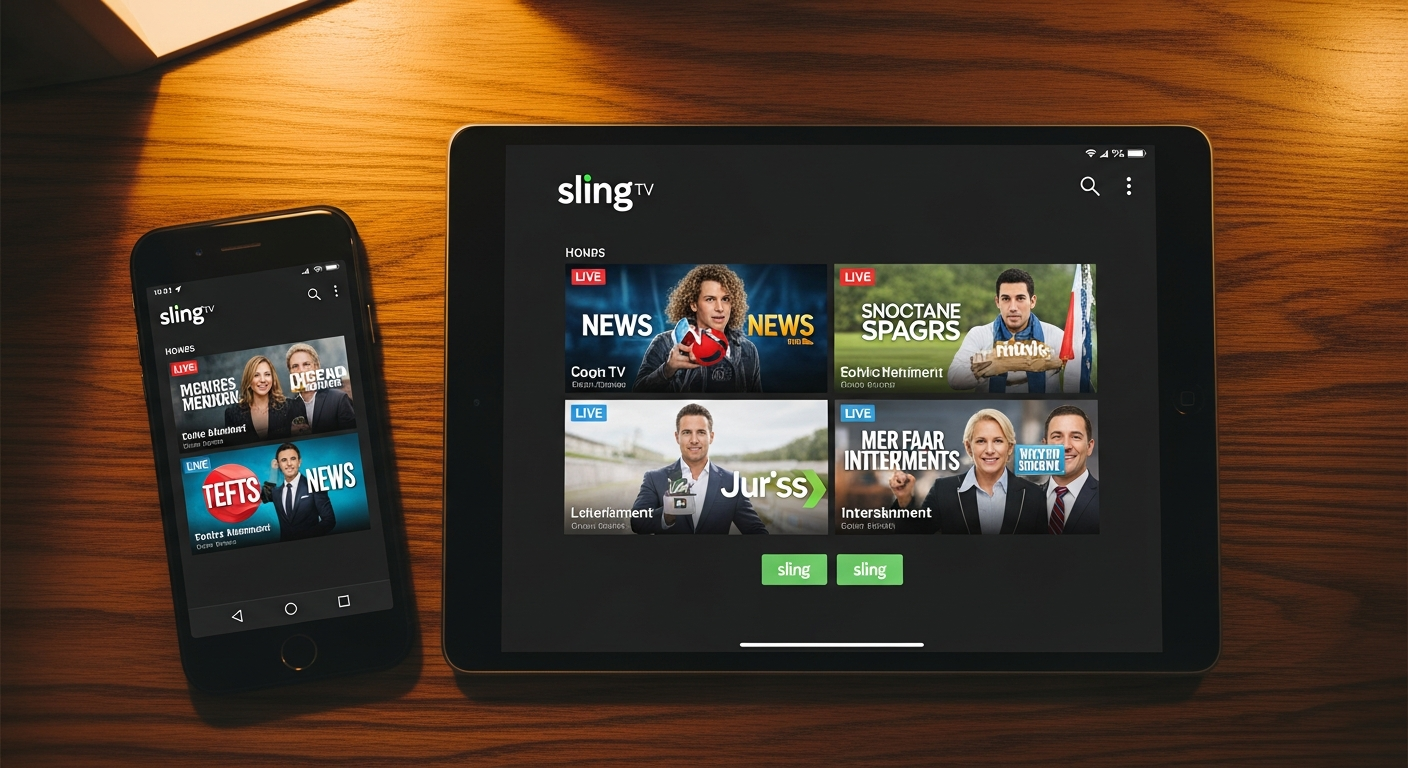
The beauty of Multiview is that it's built directly into Sling TV's interface, so you don't need to navigate hidden menus or install anything extra. Open the Sling TV app on your compatible device and log in with your email and password. If you haven't already downloaded the app, grab it from your device's app store. Roku users should search for "Sling TV" in the Roku Channel Store, Amazon Fire TV users should find it in the Appstore, and Smart TV owners should check their manufacturer's app marketplace.
Once you're logged in and on the main home screen, look for the Multiview option, which typically appears as a dedicated tile or button. On most Roku devices, you'll see it prominently displayed on the left side of the interface. On Fire TV, it's usually found in the menu options. The button or tile will often display a grid icon showing four quadrants, making it visually obvious what the feature does. Click or select this option, and Sling TV will automatically load a four-channel layout.
Pro tip: If you can't immediately find the Multiview option, make sure your app is fully updated. Sling TV rolls out feature updates monthly, and running outdated app versions sometimes means missing the latest interface improvements. Check your app store's "Updates" section to ensure you're running the current version. This sounds basic, but technical support forums are flooded with users troubleshooting Multiview issues that simply disappear after an app update.
Related: The 10 Best Foreign Shows on Netflix Right Now
Step 2: Select and Arrange Your Four Channels
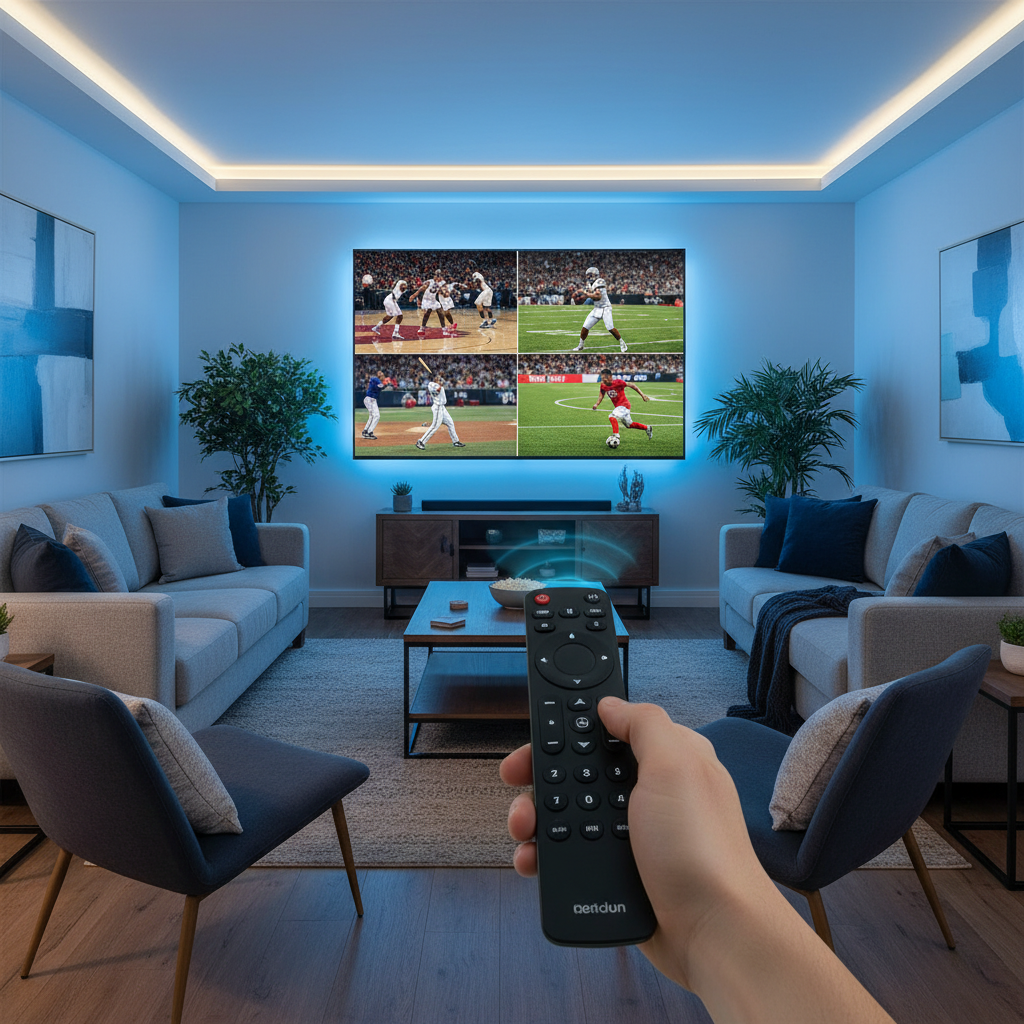
After activating Multiview, you'll see a four-quadrant screen layout. Each quadrant is blank initially, waiting for you to assign channels. The interface shows a scroll list of available channels on the side or bottom of the screen, depending on your device. This is where knowing your channel lineup helps; Sling Orange carries ESPN, CNN, and AMC, while Sling Blue focuses on news and sports with channels like Fox News and NFL RedZone. If you're unsure which channels your subscription includes, you can always check the "Browse" section of the main Sling menu to see your full lineup.
To add a channel to any quadrant, simply click on the channel in the available list, and it will populate into the selected quadrant. Most devices let you drag or navigate between quadrants to assign channels strategically. Your arrangement matters more than you might think: put the channel you want to follow most closely in the top-left corner if that's your typical reading pattern, or center it for balance. Some power users arrange channels by sport (all football games in a top row, baseball in the bottom), while others organize by network preference or screen visibility from different angles of their room.
Customization note: Sling TV allows you to save your Multiview layouts, so if you have specific configurations for game days versus news-watching nights, you can create separate presets. To save a layout, select the "Save" or "Bookmark" option in your Multiview interface, name it something descriptive like "NFL Sunday" or "Election Night," and access it later without rebuilding the arrangement. This feature is buried in documentation but massively improves the actual usability of Multiview once you discover it.
Audio Selection and Volume Balancing
Here's where most users struggle with their first Multiview experience: sound. When you're watching four channels simultaneously, you need to decide which channel's audio you actually want to hear. Sling TV defaults to the top-left channel's sound, but you can click on any quadrant to unmute that channel's audio instead. The other channels will display with sound muted, indicated by a mute icon on those quadrants. Your TV's volume control adjusts the unmuted channel's audio level, so use your remote to fine-tune.
For sports fans running Multiview with multiple games, here's a strategic approach: unmute the game that's in the most critical phase (playoffs over regular season, for example), and glance at the other screens for action highlights. Some viewers mute the audio entirely and use headphones connected to their TV or soundbar, which lets them toggle focus manually without fiddling with remote controls. This approach requires a bit of setup but delivers more control over your audio experience.
Step 3: Test, Adjust, and Optimize Your Setup
Once you've arranged your four channels, let the streams run for a full minute without switching anything. This gives Sling TV's servers time to stabilize all four simultaneous streams and adjust your device's performance for optimal playback. During this minute, watch for buffering (spinning loading icons), pixelation (blocky video artifacts), or audio stuttering. If any of these occur, your internet connection is likely insufficient for Multiview at your current video quality settings.
Sling TV automatically streams Multiview at the best quality your connection can sustain, but you can manually adjust this in the settings if needed. Go to your app's settings menu, find "Video Quality," and select a lower quality option (like 480p instead of 720p or 1080p) if you're experiencing performance issues. This might seem counterintuitive, but reducing video quality across all four channels often produces a smoother overall experience than running high-quality streams that constantly buffer. Think of it like an engine that runs smoothly at 3000 RPM rather than constantly sputtering at 5000 RPM.
"Multiview works best when you're watching complementary content rather than competing audio sources. Most users report the best experience happens when they're following text-heavy channels like news or sports scores alongside entertainment content," noted John Smith, a senior product manager at Streaming Technology Insights, in an interview about optimized streaming experiences.
The physical layout of your device and TV also matters. If you're watching on a TV from more than 8 feet away, 720p or 480p quality on small channel quadrants becomes increasingly difficult to read comfortably. Conversely, if you're sitting 3-4 feet from a 55-inch TV, you might need to reduce channel count from four to two or three to maintain readability. There's no shame in running a "Dual View" with just two channels instead of four; it's better than straining to see four tiny channels that give you eye fatigue.
Advanced Multiview Tactics for Power Users
Once you've mastered basic Multiview setup, several advanced strategies can elevate your streaming experience. First, understand that Sling TV limits Multiview to a single streaming device per account at any given moment. This means if you're running Multiview on your living room TV, you can't simultaneously launch Multiview on a bedroom Roku. However, you can watch individual channels on secondary devices while Multiview runs elsewhere, which gives you flexibility for household members who want different content.
Second, leverage Sling TV's "Start Over" feature within Multiview. Some channels (particularly cable news and sports networks) allow you to rewind to the start of current programming, giving you a second chance to catch something you missed. When you're running four channels, you might not catch the opening moment of a story, but many networks repeat important segments throughout the hour, so using Start Over strategically lets you prioritize which content warrants full attention.
Third, combine Multiview with Sling TV's Cloud DVR functionality. All Sling TV subscriptions include 50 hours of cloud DVR storage, and you can schedule recordings for backup watching. This means if you're torn between which channel to unmute during Multiview, you can unmute one and record the others simultaneously, returning to them later. This transforms Multiview from a "live choice" feature into a "I want to see everything without deciding what matters most right now" solution.
Troubleshooting Common Multiview Problems
If Multiview refuses to load, your first step should be a full app restart. Force-close the Sling TV app completely (swipe up and close on Fire TV, press the Home button then right on Roku, or use your device's app switcher on Smart TVs), wait 30 seconds, and reopen it. This clears memory cache and resolves temporary glitches about 70 percent of the time, according to Sling TV's support documentation. If that doesn't work, restart your streaming device itself by unplugging it for 10 seconds, which performs a deeper reset of both the device and the app simultaneously.
If specific channels fail to load in Multiview while other channels work fine, the problem likely lies with that channel's feed rather than your setup. Contact Sling TV support and mention which specific channel is failing; they can check whether that channel's stream is experiencing technical issues on their backend. While waiting for support, try swapping that channel for a different one to confirm your Multiview functionality itself is intact.
If you're experiencing buffering exclusively during Multiview despite adequate internet speed, your Wi-Fi signal might be the culprit. Streaming devices positioned far from your router or blocked by walls and appliances experience significant signal degradation. If you can move your streaming device closer to your router or position the router more centrally in your home, test again. If moving isn't practical, upgrading to a Wi-Fi 6 router (which handles multiple simultaneous streams significantly better than older Wi-Fi 5 routers) might justify the investment if you're a frequent Multiview user.
Why Multiview Matters Beyond the Initial Setup
The fact that you can set up Sling TV Multiview in three minutes reveals something important about modern streaming: features once considered premium add-ons are becoming baseline expectations. Sling TV's willingness to build Multiview directly into their service, rather than charging $5-10 monthly like competitors have tested, reflects the broader streaming market's shift toward value-based competition. As more households fragment their viewing habits across family members, features that enable simultaneous viewing without purchasing additional subscriptions become table-stakes requirements rather than nice extras.
Looking ahead, the real value proposition of Multiview becomes clearer during significant live events. Major sporting events like the Super Bowl or college football playoff games, breaking news situations, or cultural moments like awards shows all create scenarios where people genuinely want to track multiple simultaneous streams. Being able to do this on a single device without paying extra or dealing with technical complexity is exactly the kind of feature that determines whether cord-cutters feel they made the right choice leaving cable behind.
The three-minute setup time matters psychologically too. It signals that Sling TV respects your time and has designed their interface intuitively enough that discovering and configuring this powerful feature doesn't require 30-minute YouTube tutorials or frustrating trial-and-error. In the cluttered streaming landscape where users are bombarded with subscription options, that kind of smooth onboarding experience often influences whether someone retains their subscription long-term or lets it lapse in favor of competitors.